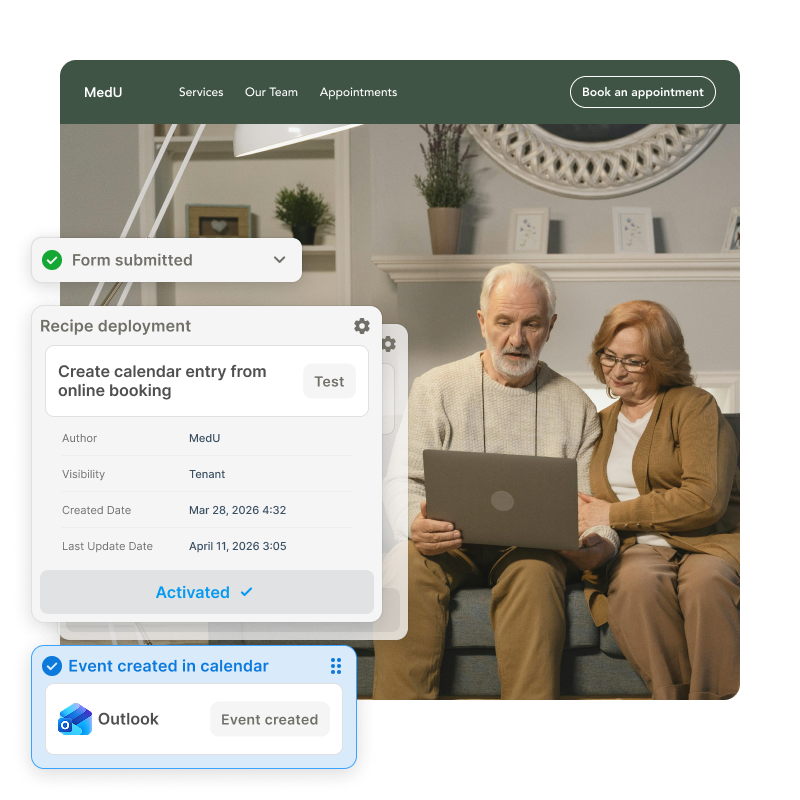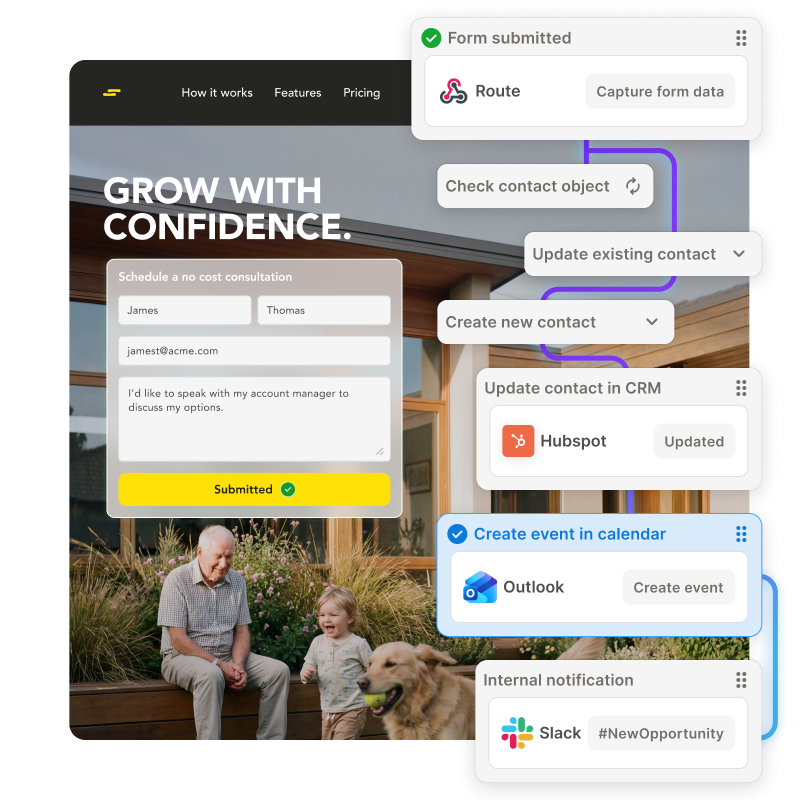
Detecting and capturing errors for you
Captures the exact state of your integration flow when an error occurs, helping you pinpoint which step failed to diagnose and fix the error.
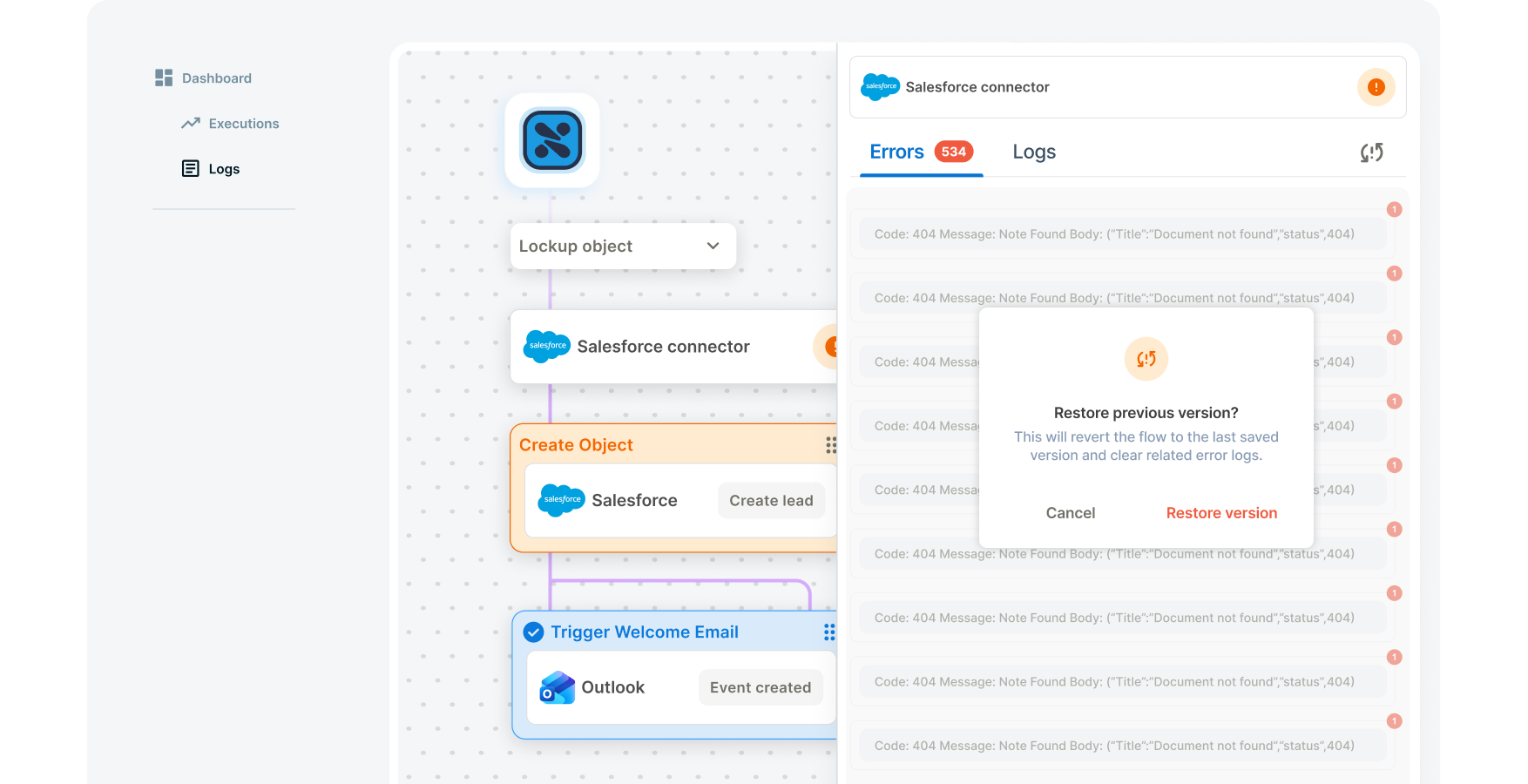
Quickly get notified and recover from failed integrations.
To deal with unexpected issues that can cause complex integration flows to fail, our integrations are equipped with three powerful features: error retry, custom error handler and flow snapshots.
Captures the exact state of your integration flow when an error occurs, helping you pinpoint which step failed to diagnose and fix the error.

The error retry feature enables you to process failed messages in your integration flows.
Decide how errors should be processed. Send a log to a database, notify staff via email and much more.
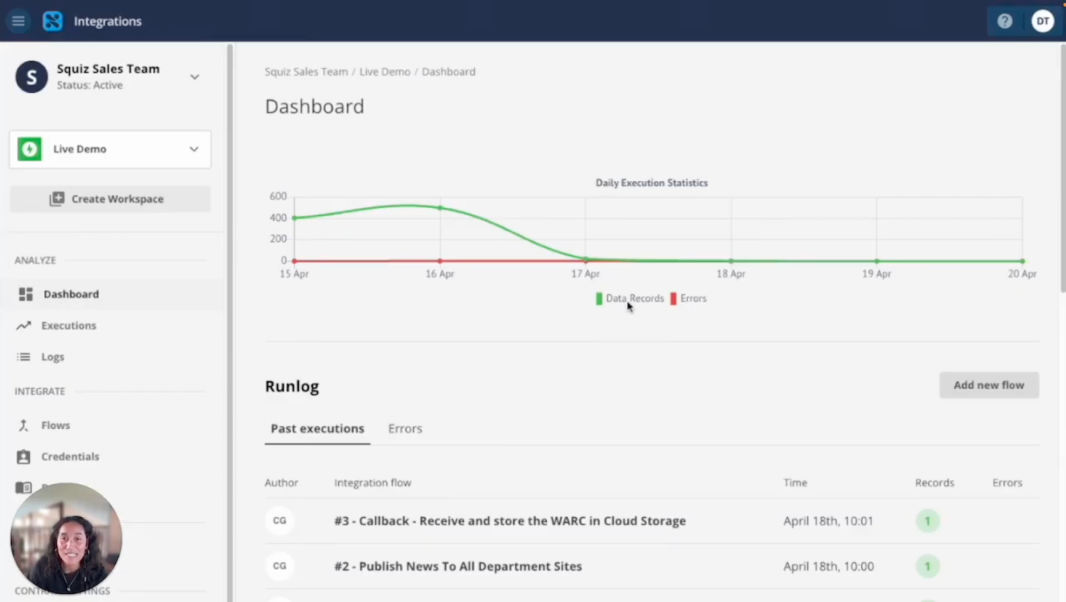
Video: See how it works. Captions and transcript available on playback.
Take a closer look at how error handling work in this short demo.
Hey, I’m Davila. In this quick video, I’m going to show you how you can handle errors when building integrations with the Squiz Integration Platform Connect.
To start the demo, I’ll show you this news page on my university website. It features a latest news article with a title, content, an image, and additional details below.
I also have an engineering school website with a news section. My main university website is integrated with it, so all news content is automatically published there. This ensures that visitors to the engineering site can also see the latest university-wide news.
This is all powered by the Squiz Integration Platform Connect. However, at first glance, I can see that my latest article is not appearing on the engineering site. So, let’s investigate.
We’ll start by looking for errors in the integration platform dashboard. Here in the Squiz Connect dashboard, I can see details about previous executions of my integrations. I’ve also been notified that there were errors in the integration flow responsible for publishing news content to department websites.
I can see the error, the time it occurred, and an error message. What’s particularly helpful is that I can identify the root cause: the “last modified date” was not a valid date when the page was first published.
Now, I can click into the integration flow to view a snapshot of how it ran at that specific time. You can see the timestamp here, along with exactly which step in the flow failed.
Clicking into that step shows the same error message, along with a detailed log trace. I can also access additional logs, including request headers and mapper logs, to better understand what went wrong.
From here, I can retry all errors related to this flow. This is really useful, as it allows me to automatically rerun integrations that previously failed or timed out.
Before retrying, I’ll go back to my news page and confirm that the issue has been fixed. I can now see that a valid date has been added. It seems that when I originally published the article, the date was either missing or invalid.
Now that the issue is resolved, I’ll retry the integration.
Once that’s done, I’ll return to the engineering website and refresh the news page. There it is—the latest article is now appearing, complete with the image and the “University for Engineering Careers” title.
To confirm everything worked correctly, I’ll go back to the dashboard and check the latest execution. As you can see, there are no errors, and the flow has completed successfully.
Most integration platforms don’t provide an easy-to-use dashboard like this to help you track what went wrong, where, and when. But Squiz Connect surfaces and interprets these errors for you, so you can quickly resolve issues and recover from failed integrations.
Hope this was helpful—thanks!